
A screenshot can work if your dog’s face is clear and there’s enough room to crop around it. Before uploading it, try to find the photo that the screenshot came from. The original may show details or part of an ear that the screenshot cut off.
Look for the original first
If you took the photo, search your photo library around the date it was taken. Try the album you shared from, too.
If you found it in Google Photos and it isn’t already saved on your phone, open the picture and tap More, then Download. Android download steps · iPhone and iPad download steps
If someone sent the picture in a group chat, go back to the original message and open the photo itself. Save the photo from the message if the app offers that option. If it still looks fuzzy, ask the person who took it to send the file directly from their photo library. If you’re keeping the gift a surprise, ask another family member who was there.
Compare the two files on your phone
Open the original and the screenshot in turn. Zoom until your dog’s face takes up about the same amount of your screen in both. Use the one that keeps the eyes sharper and shows more of the face.
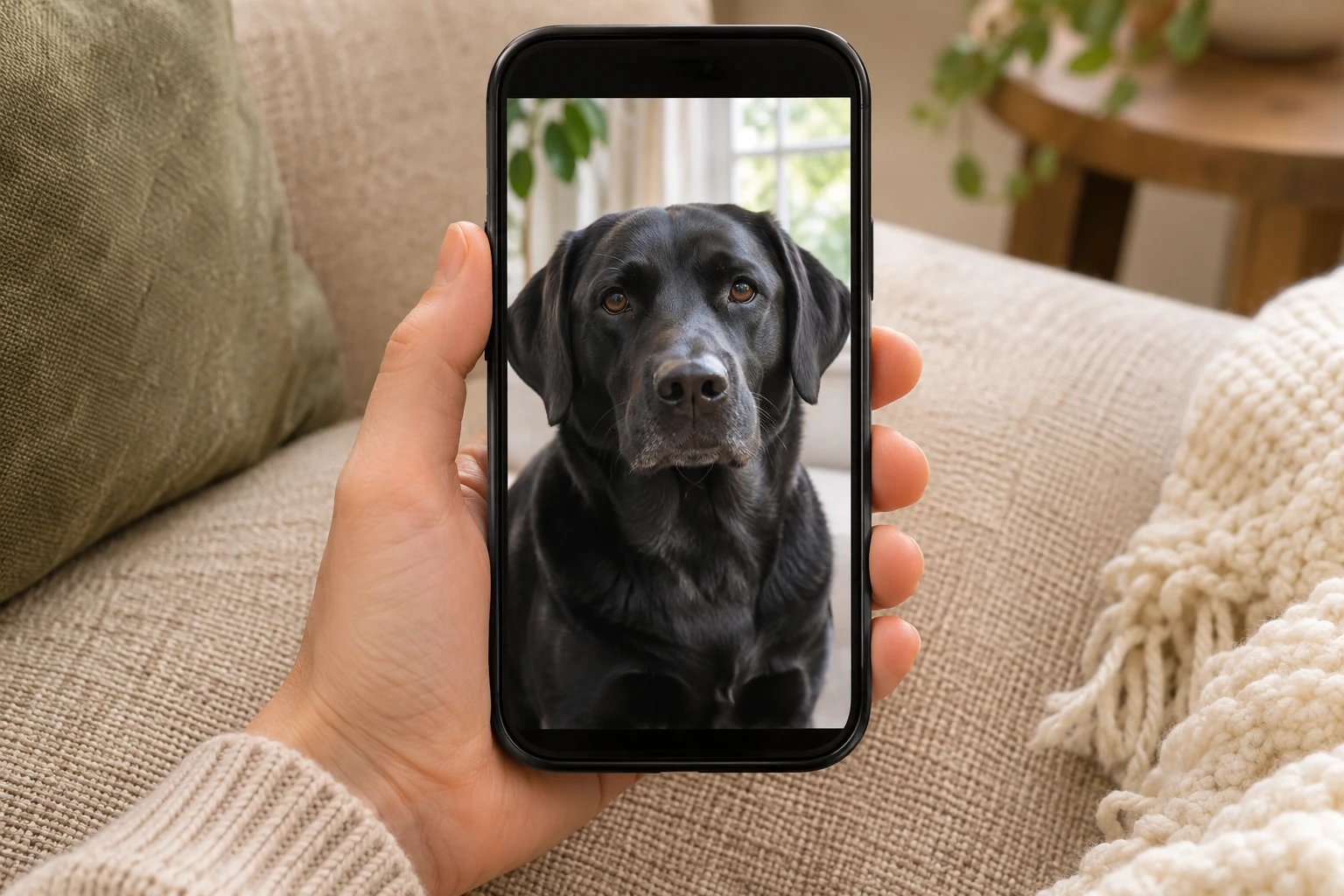
If the screenshot includes a chat border or other clutter, focus on what you can see in the dog’s face. Choose the file with sharper eyes and more room around the ears.
Check the screenshot before you choose the gift
Open it on your phone and zoom in far enough to see your dog’s face. Look for three things.
- The eyes and nose stay recognizable. If they turn into smudges as soon as you zoom in, look for another photo.
- There’s room around the face. Crop out message bubbles, screen controls or borders, then check whether both ears and the full nose still fit. Cropping can remove clutter, but it can’t bring back an ear that was cut off.
- Your dog takes up enough of the image. If the dog is a small part of a group photo, save a copy and try cropping it. Keep the larger file in case the crop is too tight.
For a black Lab, try zooming in until you can see the edge of the ears against the background and the shape of the muzzle. The screenshot can still be a good choice if those details are clear. If two files look similar, start with the one that retains more of the face. Beloved.Gifts photo selection guide
Match the gift to the photo you have
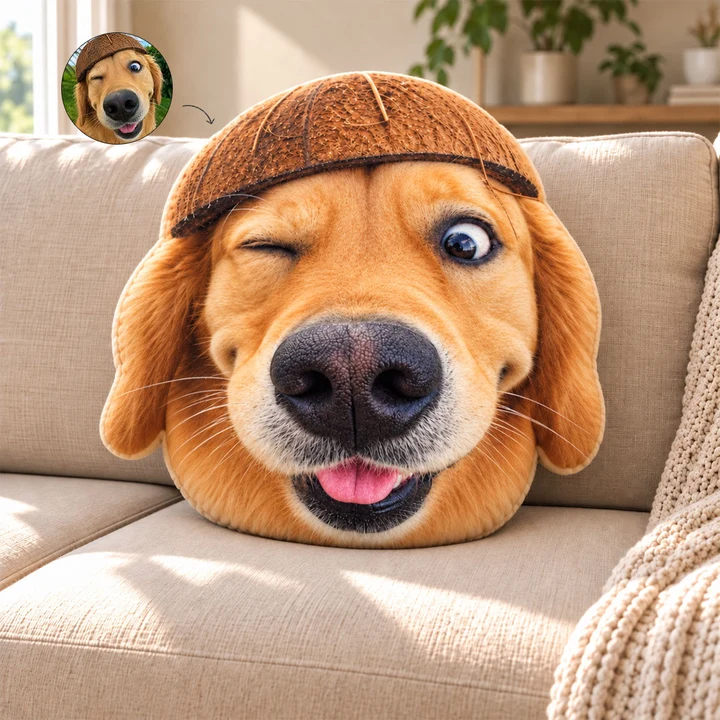
Want to turn that look your dog gives you into a pillow? Look for a front-facing photo with a clear muzzle and room around the ears. If the screenshot cuts off part of the face, try the original or look for another shot from the same moment.
Have a photo that passes the zoom test? Open the Fisheye Pet Pillow product page, choose a size, and select Customize Now to upload your photo.
If the screenshot is the only photo you have of a dog you’re remembering, see which keepsakes can work with the picture you have. Pet memorial gift ideas